webmention.io
Webmention.io is a super idea, basically webmentions as a service from Aaron Parecki, with code offered for runnning your own server. This looks lots more sophisticated than my implementation, and, hey, idea: This kind of mechanism might be a great way for sites (like mine!) over at the Tilde Clubs to turnkey implement webmentions in an otherwise limited server environment.
Maybe that’s something to tinker with this weekend!
-
Photostream images can be found in a series of numbered folders deep within your
Application Supportfolder; Adam Portilla has a very good writeup of using an Automator action — knowing the file location one could script up just about anything, I suppose — to copy files from this location. I have found I prefer the configurability and just-works nature of PhotoStream2Folder, myself. ↩︎ -
I previously had a small invocation here asking that this solution would continue to work with OS X Yosemite; happily, it still works great! ↩︎
- Ars Technica
-
Thanks to putting my entire photo catalog back online with my Synology box. ↩︎
-
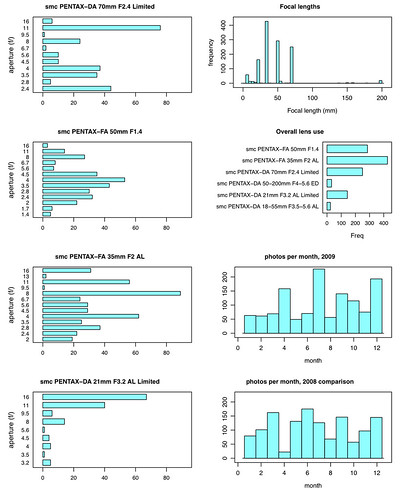
For what it’s worth, this is empirically borne out by my Lightroom photo stats from that era. For several years I ran some R statistics against my Lightroom library to produce all kinds of summary information about my metadata — like a perfect storm of my interests, photography plus geeky tinkering with code and visualizations! ↩︎
- Time Machine backup: I have a 500GB SSD on the new MacBook, so I set up a 1TB share dedicated to Time Machine. For the first backup I used the cabled connection to my switch, and my experience so far is that routine Time Machine snapshots to the Synology work fine via wifi. When I know I need to move around a lot of bits, I hook up the cable. Synology has good instructions for time machine setup.
- All of my Lightroom photos and previous iPhoto libraries are now online. More about this below.
- iTunes media lives here, too. My iTunes library file itself is still on my laptop; some people have the need to share everything across multiple computers, but I don’t need to solve this issue at home.
- This does not make it accessible to the DS-Audio application, unlike the video application which can pull from multiple file locations.
- I have not yet explored remotely accessing any of the content on the synology.
- Update: Nope. iTunes happens to not like having its media location on a disk that’s not always available. As a result, it periodically resets itself to use a local, default media location, no matter how much I tried to ensure that the NAS share was mounted before running iTunes. This led quickly to situations where the library was out of sync with the media store, confused metadata, missing audio files, and piles of duplicates resulting from iTunes trying to re-re-reconsolidate its media. So unless/until iTunes in the future has better support for a network media location, I’m using my local disk, once again, for this. (A friend suggests using a symbolic link to point the local location to a NAS share; this seems worth a try, but I haven’t done it, yet.)
- My nine-year old Brother network printer is now AirPrint enabled, simply by plugging it in to one of the USB ports on the back of the device.
- Consolidation of backups from very old machines, like the Windows laptop that preceded my 1995 iMac.
-
And even moreso if you count the landscaping in the back yard! ↩︎
~
Paul Ford had this idea, opened up a pop-up unix server called Tilde Club and invited friends and strangers to come put stuff on it. It’s pretty cool. I’m ~schussat over there.
Syncing iPhoto Photostream with Lightroom

I’m a long-time Lightroom user. Since its beta release it has been the place where my photos go. I have a slew of export actions and have hacked together methods of varying sophistication (such as the export script that produces a tiny gallery) to accomplish what I want to do. I dug into the data that Lightroom gives me about my photos, too: See, the Lightroom database is sqlite, and one can pull all kinds of things from it, such as this network map of my keyword relationships, or my then-annual exploration into My Year In Metadata.
Way back when I was running an Android phone, I had scripts and smart galleries to help sync photos from that phone into my Lightroom library and later populate galleries to sync to my iPad. It was pretty high-tech, you guys.
This is all a way of noting that I’m very much at home working on my photos in Lightroom, so that even when I got myself my first iPhone a couple of years ago and could get photos from the device onto my MacBook Pro, I didn’t have much use for iPhoto. Photostream wasn’t muh of a solution for me, because, until I recently got a shiny new Mac, I had a version of iPhoto that predated it; my cloud photos couldn’t magically sync to my laptop unless I invested in iPhoto, and I didn’t really want to do that. So I put up with periodically plugging in the phone to the Mac (horrors) or, later, using Dropbox’s photo upload capability, to get pictures out of my phone and into Lightroom.
Point is, there was still friction. But I think now I have a solution, thanks to the good photostream syncing that I now have on the new MacBook Pro with a current version of iPhoto, plus this great and now indispensable tool: PhotoStream2Folder. PhotoStream2Folder basically does what it says on the tin, and does it well: Identifies photos in your photostream (optionally within a specified range) and moves them into a usable location on your file system1.
The Lightroom trick? Lightroom can monitor a directory and automatically import anything that lands in it. So with PhotoStream2Folder I just set up its output folder as the directory that I already have monitored from Lightroom. The next part is pretty close to magic: Within moments of landing in my photostream, new images are automatically in Lightroom. The mental overhead is just gone. I tried this in my kitchen: Took a photo of a cup of coffee (because I do), then wandered over to the MacBook Pro on the counter; the photo was already in my Lightroom library. I went to the Sunday farmers market, shot a bunch of photos with the very impressive iPhone 6 camera, and when I opened up the computer upon arriving home, all the photos were in my library, ready for me to edit, share via my extensive and baroque variety of Lightroom export/publish presets, no iPhoto interaction, copying, or re-importing required.
It’s brilliant.
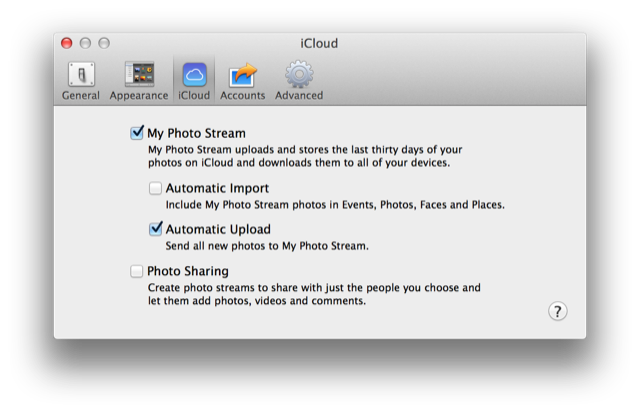
One more thing: If iPhoto is importing my photostream images, too, won’t I end up with a bunch of duplicates? Very good question. Fire up iPhoto preferences > iCloud, and turn off “automatic import.” Then iPhoto will display photos from your photostream, but not import them into your catalog, and they’ll “age out” over time. Meanwhile, all those images will be seamlessly added to Lightroom, where you really want them.
The author of PhotoStream2Folder, Laurent Crivello, asks a small donation via paypal if you find the tool useful. I think it’s awesome, and want to stress that it can be used for anything, not just Lightroom; if you simply want to get photos out of your photostream, without relying on iPhoto as your photo management application, this is your go-to. With one quick solution it has taken all of the mental overhead and friction out of managing the photos I shoot on my phone.2
Apr 11, 2015 – Yosemite + Photos update: I am happy to add that with OS X 10.10.3 and the Photos update continue to work. I have yet to really try out Photos, but it apparently doesn’t come with any under-the-hood changes that interrupt the way PhotoStream2Folder picks up images from your photo stream. Sweet!
My friend Joel is working on a webmentions method of his own: Email!
#
I’m trying out keybase.io: alanschussman
Upgrades: iOS 8 and iPhone 6
The usual suspects have their extensive iOS and iPhone 6 reviews up and feeding page views to the masses. I have particularly appreciated a few:
SteamWorld Dig
This week’s Humble Bundle is the first in quite a while where I haven’t already owned most of the included games. Of the set, I only had Papers, Please, so I went for this one. And all weekend long I’ve been playing SteamWorld Dig. It’s fun, has great two-dimensional art, is challenging but never obtuse, with a nice learning curve.
Gamasutra has a cool writeup by the developers that describes the design decisions they made in the dig and jump mechanics. It’s a good read, and a great game.
What I Found in my Photos
There’s some research somewhere — or perhaps merely a critical contention — that focusing on taking pictures instead of appreciating the moment inhibits our formation of memory. That is, the argument goes, all our social media documenting makes those moments increasingly fleeting and uncaptured. Well, I spent a good chunk of yesterday slowly making my way through 2007 in photos,1 and was struck again and again by those memories. I took more than 4,000 photos in 2007; when I scroll through those images I am astounded by what I remember.
I shared many of those photos at the time. I was trying out my first Project 365 on flickr, and I posted at least one and sometimes several pictures per day. It was a pretty big year for me: I lived on my own in Seattle for a while during a predoctoral internship; finished my dissertation and graduated; interviewed for some jobs; made a significant career change; bought a house; and captured hundreds more daily snippets of life because I was basically taking pictures all the time. Walking through not ony the pictures that I shared, but the photos that I didn’t share, brings me back this flood of recollections.
Don’t Forget to Remember This (At John Carey’s blog, which I discovered via Shawn Blanc) is a wonderful essay about why we take pictures and about the pressures that shape what we shoot, and for whom:
The challenges present in photography today are not in the devices we use to capture, it’s not in our approach, skill level, or what we think we need to create good photos; the problem today is in social pressure. Photography has quickly evolved in its short lifespan from revolutionary, to useful, to ubiquitous and full of expectation.
John Carey works through the conflict in contemporary photography between one’s own perspective and the aesthetic driven by likes, shares and faves. So much of what he says resonates deeply, all the moreso as I think about — and look at, again — the photos I never shared: My wife, my son, moments that might be snapshots or might be carefully composed but which were shut out of sharing because perhaps they weren’t fancy enough or evocative enough, or maybe just because I had already posted a couple that day.
Some of the pictures of my wife and son (born much later than the year of photos I have been poring over this weekend) are images I would love to share; they’re so beautiful, and pictures of people have so much vibrance and life to them, which I am always so happy to preserve. But they’re also private. The stars and comments of “great capture” might superficially validate me or make me feel like a portrait photographer with a fine eye. But a flickr friend’s heart would not feel what mine does when I find, again, that lucky photo of my wife suddenly laughing, so wonderfully bright and alive.
My current camera of choice is this wonderful Fuji X100S, but previously I shot with a Pentax K100D and a growing collection of prime lenses. It’s easy to be captivated by new, fun, fine gear: gear acquisition syndrome is driven just as heavily by the peer pressure to make photos like others’ photos and in turn the notion that doing so requires having their gear. But as I look back at these older years’ collections of photos I am also struck that some of those photos are really good. Not simply because I like the subject or I found a good moment, but technically good: They’re sharp, colorful, detailed. That’s a good little camera that’s now nearby on the shelf with its FA35mm lens mounted and ready to go; that combination perfectly fit my own photographic vision for years, and I loved going out and using it.2
John Carey again:
My compositions and developing have similar fingerprints in that they tell me a lot about how I felt when I made the photographs. Every click of the shutter for me is a moment worth remembering and it’s the memories that make photography so gratifying for me. I find so much to be thankful for when I look back through the images I have captured through the years.
Back to my own memories: Exploring the photos I made that year, I can’t say that I recall every single moment. Sometimes I was detailed enough to put in a pretty good caption. But in the context of the surrounding images, I get so much back: That was a photowalk around Bellevue; this was a hike on the Arizona trail (and that summer we hiked almost every day!); here’s the celebratory drink the night I decided to go for it; the job interview trip and Half Moon Bay with my grandfather; sitting in the backyard with the dogs and making coffee. Normal days and extraordinary days all lined up next to one another.
And on and on, now with my iPhone and Fuji (regarding which I must confess that I am beginning to feel some desire for the flexibility of point of view offered by an interchangeable lens system; that’s another desire re-kindled by my back catalog and many favorite 50mm images from the old Pentax); and even more with a boy now in preschool and a city and neighborhood that I still frequently walk, camera on my shoulder.
Amethyst, a tiling window manager for OS X
Amethyst arranges application windows on screen (or on a specific space) into a tiled arrangement based on one of several models. (I am using the “tall” setting.) It takes a bit of getting used to, but I like it now that I have sort of got the hang. The key thing to grok is that it arranges all visible windows, so if you have a ton of visible windows, hide everything you don’t need at the moment. Un-hiding a window will cram it into the existing arrangement — by shortening one window to make room for another, for example. So you can pop up a terminal window and have it fit into your view while you use it, and when you hide it, the window(s) that made room for it will expand back to their previous size. It’s controllable by keyboard, so you can float, resize, and cycle through windows without touching the trackpad. Quite cool.
Me and My Synology
With a MacBook Pro upgrade, mentions hacking, and sync updates, it’s been a sort of Infrastructure Summer around here.1 To cap it off, after getting the new MBP up and running I decided to get serious about my home storage and backup.
I have frequently heard good things about Synology, so I started there. One of my goals was to centralize storage from a rolling series of external USB drives that I have accumulated over time. These drives have occasionally been connected to an Airport Extreme, hosted via an old iMac, or just plugged in from time to time to offload photos, music or video into “offline” storage, where it’s no longer taking up space on my laptop.
While I sort of drool over the fancy multi-bay devices like the DS1513+, my needs just aren’t that heavy. So Shawn Blanc’s Brief Review of the Synology DS213j — Shawn Blanc made that particular device look just about right. His writeup is the one I pinned for later reference and leaned heavily on for first principles when getting up and running with my very own DS213j. I also learned a lot from Gabe Weatherhead’s post about moving from a Drobo to a Synology. (I don’t know what I would do with Gabe’s 24-port switch save for gaze at the magnificent 18 unused ports, but I picked up an 8-port switch with my DS and dramatically improved the wiring in my cabinet as well as getting a spare hard-line to my laptop for when I’m at the desk.)
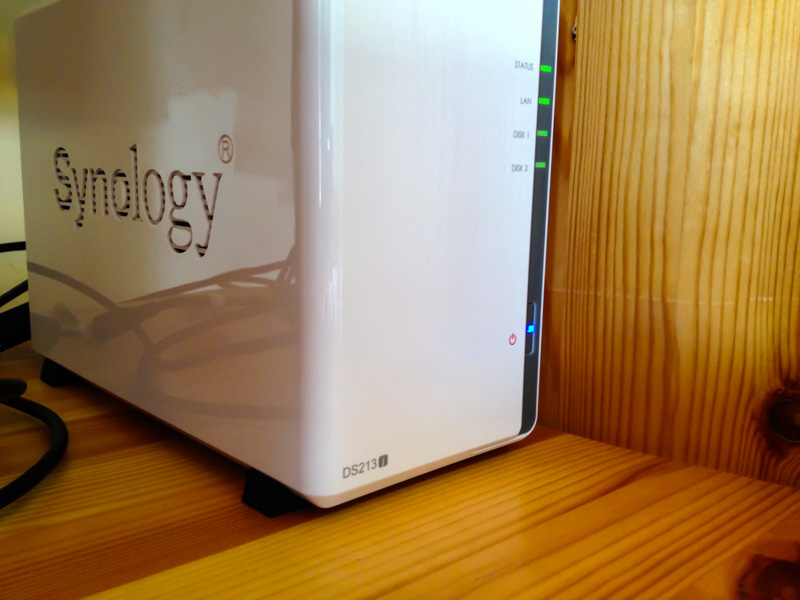
Like Shawn, I plugged two 3TB WD Red drives into the box. On setup, the Synology gives the option of automatically configuring the second drive as a mirror of the first; great, one less thing for me to figure out. So that leaves me with 3TB on board space, plus a USB drive plugged in as an additional redundant backup.
Obligatory Old-Days Aside: My first hard drive was a 20 megabyte disk installed in a Compaq DeskPro 386s. I later convinced my dad that we needed to replace it with a 40 meg drive so that I would have room for Wing Commander and my WWIV BBS. Sometimes the very idea of gigabytes of storage, to say nothing of three terabytes of disk space, still sort of blows my mind.
So what am I doing with all this?
Visibility & Accessibility
I greatly underestimated the satisfaction of having seamless access to my previously-archived photos. For years I moved from six months to a year of Lightroom library to an external hard drive. This freed up precious storage space on two generations of laptops but meant that I couldn’t get to those images without finding and plugging in that drive. Moreover, with each offloading cycle I had to re-identify the folders I had previously moved over and check backup status before I could even start moving the current set. It was a lot of mental overhead and consequently was all too easy to put off.
Now, with the NAS, I simply scroll further back into the years within my Lightroom library, and there are my photos. I am rediscovering photos and memories that I haven’t thought about in years. In photographic terms it’s inspiring: There are some pictures there that I’m proud of, work that I really like. In emotional terms, it’s wonderful: The summer we hiked every day; the trip to Orcas; odds and ends of days.
Under the hood
Shawn and Gabe both discuss the DiskStation software on the Synology, so I won’t go much into it except to say that I really like it. Being basically a UNIX-based NAS, this is a sophisticated piece of hardware and has a lot of capability. Synology overlays an accessible interface on top of the linux guts of the device, making volume creation and management, user administration, and application installation really slick.
Since it’s linux you can do all kinds of stuff, like ssh into the box, copy over an rsync script, and use the box as a server to perform scheduled backups to and/or from remote server. Zarino Zappia has a series of great posts that detail accessing the Synology via ssh and moving files around through the terminal.
Good stuff.
Looking ahead
I would likely look for a device with more USB ports next time. I’ve already swapped the printer with another USB drive a couple of times. It would be much more convenient to have a spare cable that I could easily attach another drive to temporarily.
At some point I’ll explore the features I get by opening up the NAS to external access, like music sharing to my mobile devices, as well as general file sharing. I have some of those remote server jobs to schedule, and I’m interested in trying out the Photo Station app. Meanwhile, there’s not much downside to this solution for me, and at this point it’s pretty much a fully operational battlestation. I got storage, backup, new capabilities from the Tiny Server in the Synology, and even got my cabinet cleaned up as part of my installation. I’m happy.